
The short answer
Set up one-on-one coaching online by defining a focused session, its duration and format, client preparation and any follow-up. Review actual availability and confirmation controls before sharing a booking route. Keep requests, appointments and payments distinct.
Define a focused session
Start with the result: what problem will you help someone work through? Then set the format, session length, and what they should prepare. If follow-up notes or materials are included, say so.
If they aren't, don't imply they are. Use a portfolio review as the example. A client wants feedback on a small selection of photographs, not an undefined promise to improve their entire career.
Name the number of images, session length, and type of feedback. Explain what the client should send beforehand and what happens if the material is incomplete. This makes the session easier to prepare for.
Avoid promising a transformation or treating a single conversation as proof of an outcome you cannot guarantee.
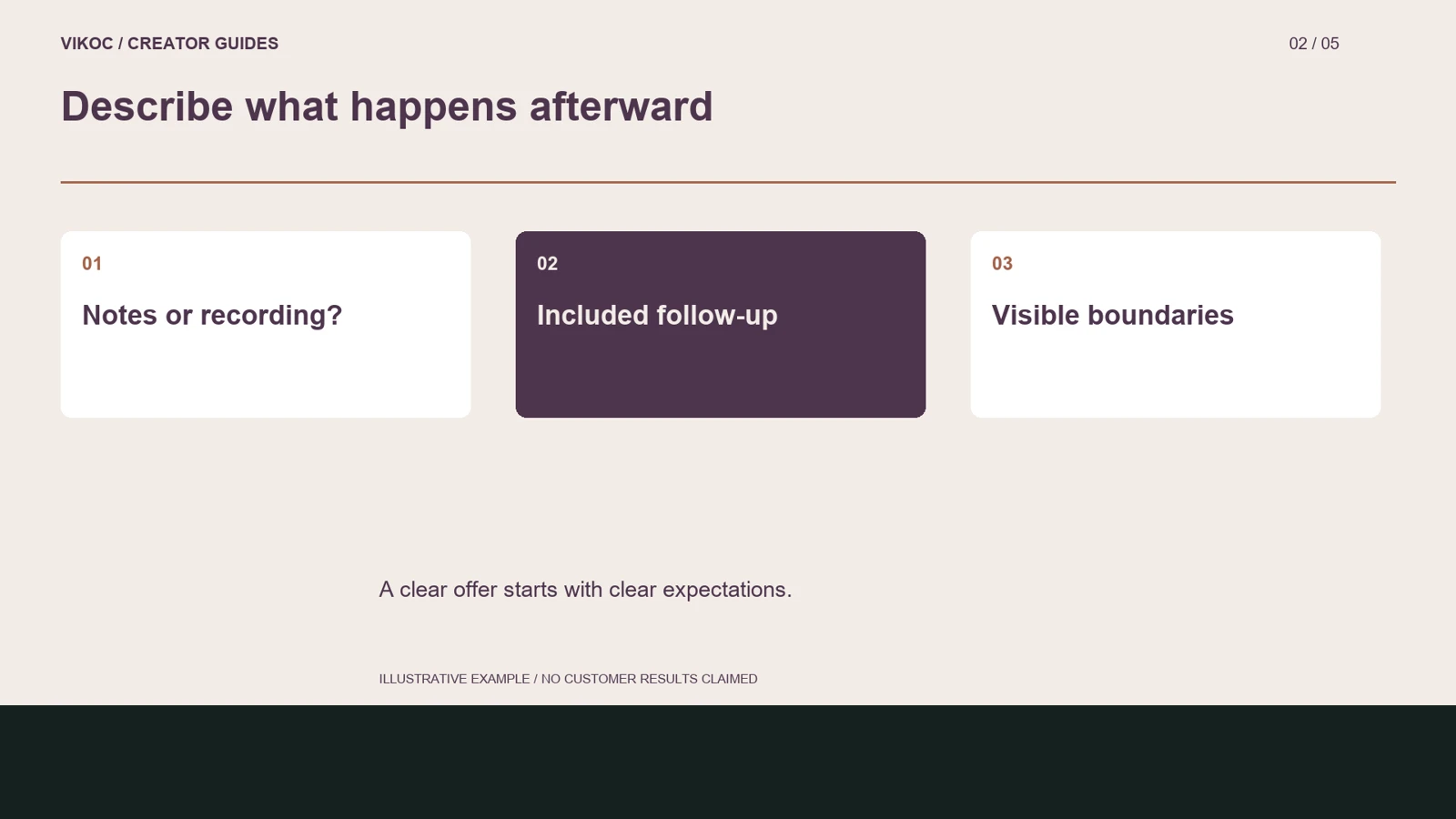
Describe what happens afterward
Next, define your available times and check the timezone. A booking that looks clear to you can be confusing to someone in another country. State whether the client receives written notes, a recording, or follow-up resources.
If none of those are included, do not imply they are. Explain any revision or follow-up boundary in the description. A service can be useful without unlimited ongoing support.
Use example terms to show the structure, and adapt them to what you can deliver. The preview should demonstrate your approach or expertise without exposing another client’s private photographs, feedback, or contact details.
Make time and status explicit
Before sharing it, test what a visitor actually sees and what the booking records show. Inspect the schedule or request controls available in your account. Confirm the timezone shown to the visitor and distinguish a requested time from a confirmed booking.
If your setup uses manual confirmation, say so; do not draw a fictional automated calendar. State how availability changes and how the client will receive confirmation through the actual supported process. Do not promise automatically created meeting links, reminders, or refunds unless you have verified those functions for the account and workflow you are using.
Inspect the real schedule controls
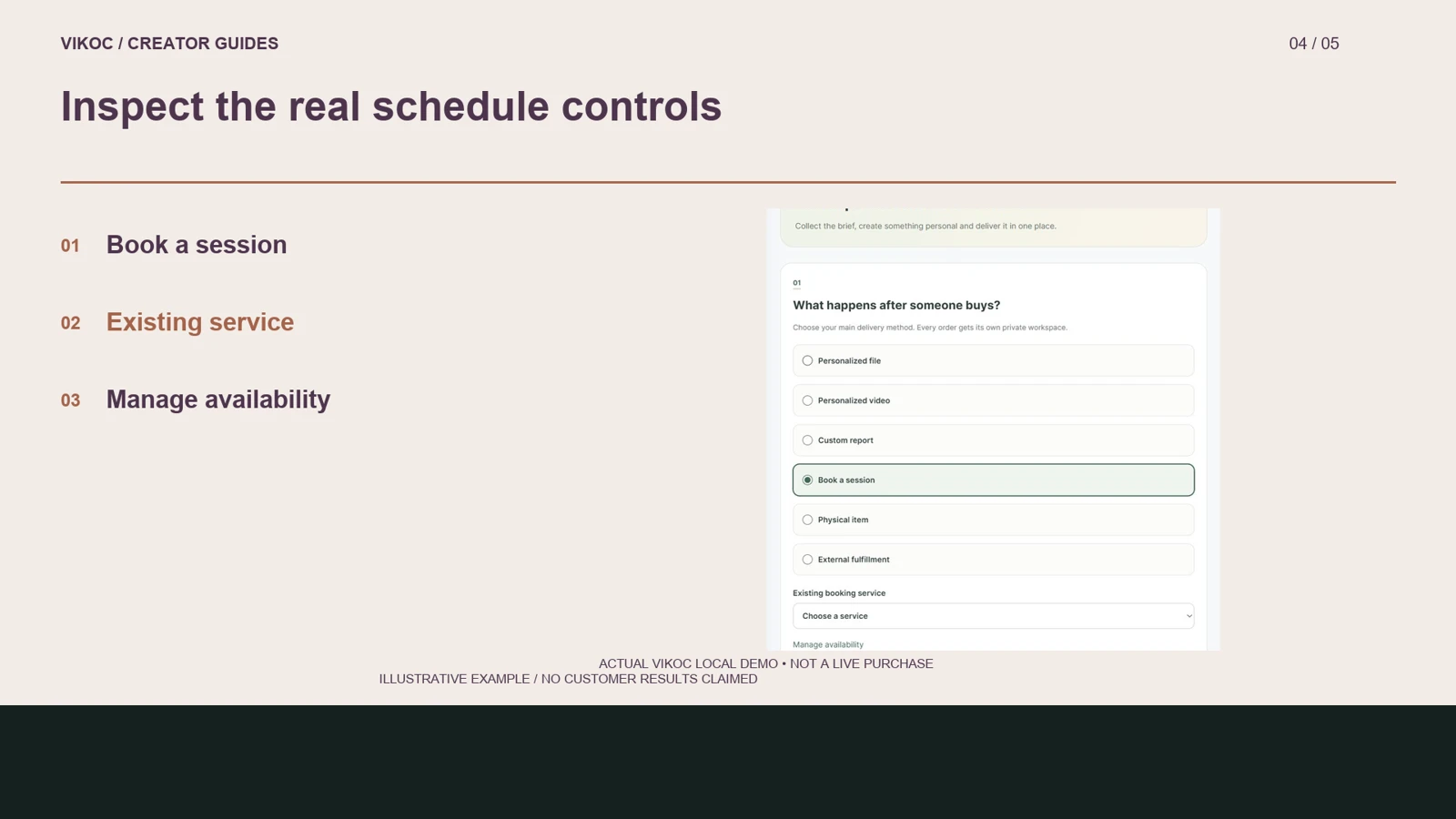
In the custom-service editor, Book a session reveals an existing-service selector and a Manage availability link. The scheduling workspace shows a calendar and an Add availability action. These controls were inspected in a demonstration creator account.
They still require a configured service and valid availability; a calendar on screen alone does not establish that someone can book it. Inspect the available fields and confirm the timezone used by your setup. For our portfolio-review example, keep the session’s duration and preparation instructions consistent with the selected service.
Then review the visitor route and confirmation records using an appropriate test. This tutorial shows the setup controls and a review checklist, rather than claiming a completed paid appointment.
Test before inviting clients
Review the public description as a new visitor and follow the available next step. Check what the creator can see afterward, keeping test activity separate from real customer records. A submitted enquiry is not a payment confirmation.
If you have not tested the full booking and delivery process, describe it as a checklist rather than a completed demonstration. Keep the offer small enough to fulfill reliably, then refine the page when genuine client questions show where the explanation could be clearer.
Try it with one real offer
Outline a portfolio-review session with a fixed selection of photographs. State preparation, session length and follow-up. Inspect available scheduling fields and test what the visitor sees before inviting clients.
Common questions
Does an availability calendar prove that paid booking works?
No. A visible calendar does not verify the selected service, timezone, confirmation or payment. Record which parts were tested and avoid presenting an untested appointment as completed.
How should I verify this in my own VIKOC account?
Compare the available controls with the offer you intend to deliver. Review the public destination as a visitor and record which setup, payment or delivery steps were actually tested. A local demonstration is not proof of a completed customer transaction.