The short answer
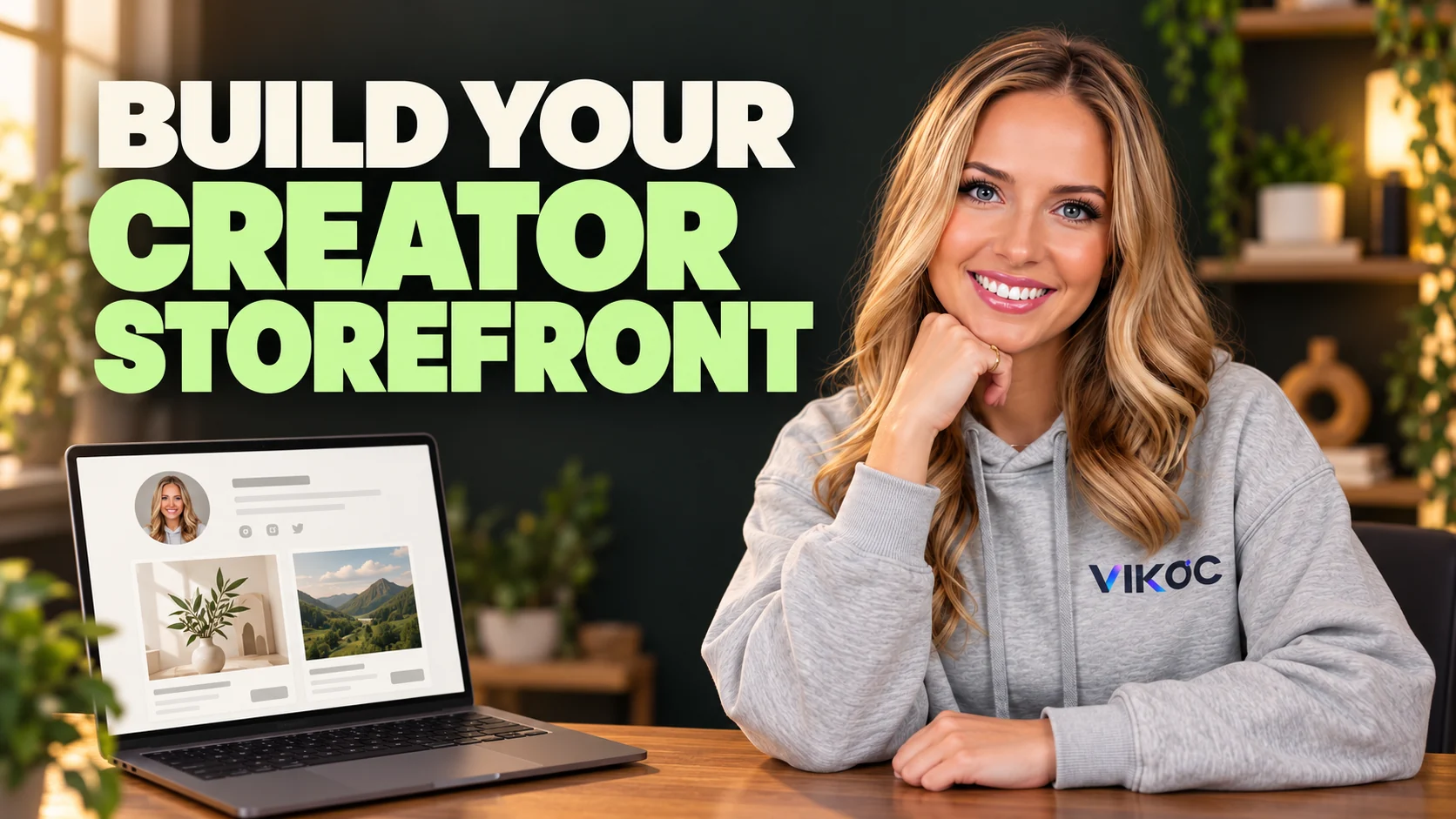
A creator storefront is a public page that introduces your work and gives visitors a clear route to your products or services. Build it around a specific audience, a recognizable profile, and one easy-to-find offer.
Start with one promise
Before choosing colors, write one sentence about who you help and what you make. For our example: I help independent cafés promote their next event with ready-made posters and custom design. That sentence gives the whole store a direction.
Avoid listing every skill you have. A visitor should quickly recognize whether this store is relevant to them.
Set your store identity
In Creator Studio, open Store settings and Store profile. The identity section contains your photo, name, and public store address. Use a clear image that still works as a small circle.
Choose a name your audience already recognizes. Check the displayed address carefully: this is the destination people will need when you share your store. Use a draft storefront to review the layout before publishing.
Write a useful introduction
Use your bio to connect your skills to a buyer's task. Instead of saying passionate creative professional, explain that visitors can find café promotion posters and request a custom event design. Add a few relevant skills.
Then review the public contact controls. Only display contact channels you want visitors to use, and add social profiles you actually maintain. A short, specific introduction is easier to understand on a phone.
Choose a theme with a purpose
Next, open Design Store. VIKOC offers themes with different ways of presenting your work. A product-focused theme can suit a download collection; a service-focused theme can suit custom work.
Choose based on what visitors need to do first. Start with one theme and a simple visual direction. You can review the design before saving it to the public store.
Layout and card style are different
There are two separate decisions here. Content layout controls the arrangement of the collection, such as a grid or list. Content card style controls the image, title, price, and action inside each card.
Changing one does not mean you changed the other. Use the preview to check both. If a title wraps awkwardly or the next action is hard to find, simplify the card before adding more decoration.
Give visitors a clear first choice
Now connect the storefront to a useful offer. For our café example, that could be a poster pack or a custom poster service. Give the offer a specific title and a cover that shows the result.
Open View store and follow the same path a new visitor would take: read the introduction, find an offer, and open its details. Example prices illustrate presentation only; set your own prices after checking scope and costs.
Check before you share
Before sharing, review your store name, bio, links, covers, and product details. Check the mobile preview as well as the wider layout. When you are ready, save the intended changes and verify the public page.
Copy the public store address, not the address of your editor. If you want people to buy, also check that the offer is available and payment setup is complete. A good-looking preview alone does not establish that.
Try it with one real offer
Review your storefront on a phone. Give someone unfamiliar with your business ten seconds to identify who the store helps, the main product, and the next action. Rewrite the introduction if any answer is unclear.
Common questions
Is a creator storefront the same as a product page?
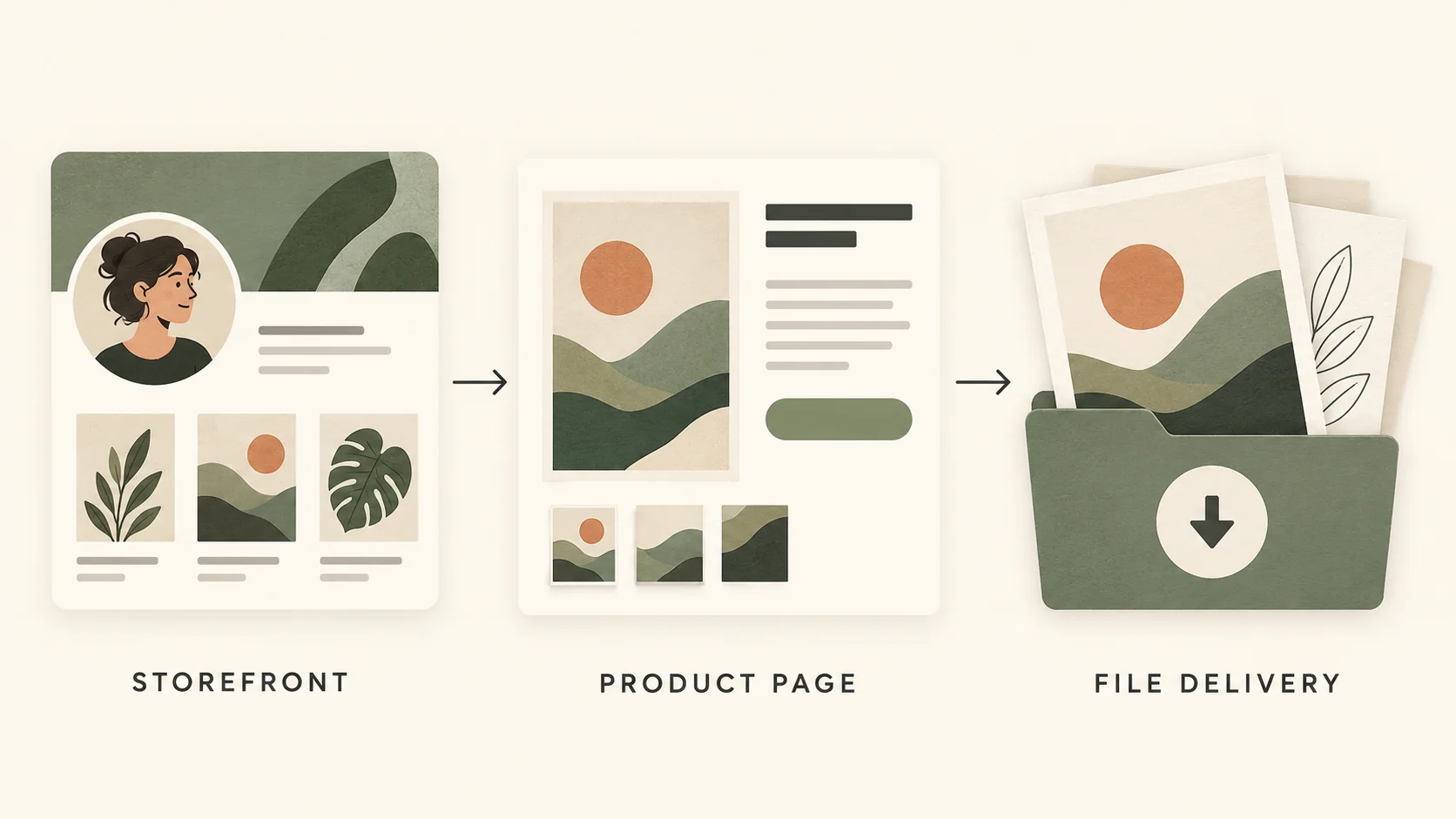
No. The storefront introduces the creator and organizes offers. A product page explains one specific purchase, including its contents, price and delivery.
Should every offer appear above the fold?
Prioritize the most relevant offer and use clear categories for the rest. A dense first screen can make the main buying decision harder.